


Why Copilot Studio often works badly with SharePoint

With Copilot Studio, it is easier than ever to build chatbots that are connected to company data. However, the connection to SharePoint often does not deliver the desired results. There are a number of reasons for this. Here you can find out why the results often fail to meet expectations and what you can do to make your Copilot Studio project with SharePoint a success.
The problem
The most common use case that my customers have is the connection of Copilot Studio to a SharePoint site. This is often the HR site or sometimes even the entire intranet. Many customers have the problem that their employees spend too much time searching for content and they hope that AI can help here.
In Copilot Studio, the “Generative Answers” action is used for this purpose. It then usually becomes clear very quickly that Copilot Studio's answers are far from the quality that was hoped for. Some answers are correct, but often there is no answer at all or the answers are wrong. To understand this, we must first try to understand how Copilot Studio generates answers on its own.
Search process
The process is as follows: The user submits a query to the agent. A language model extracts the essential information from it. As a rule, this means the keywords entered by the user. These keywords are then sent to the SharePoint search.
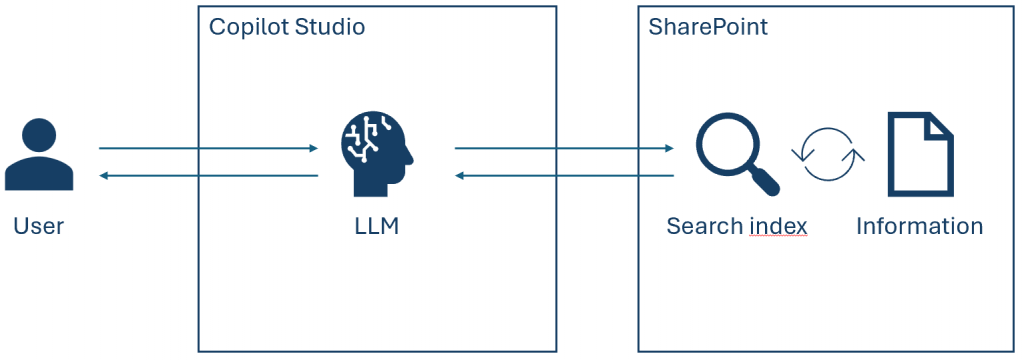
The user sends a request to the agent. An LLM model extracts the essential information and keywords. The keywords are forwarded to the SharePoint search. The SharePoint search continuously updates its search index. The SharePoint search returns the search hits found to the LLM, sorted by relevance. The LLM formulates an answer based on the user query and the top 3 hits from the SharePoint search.
The SharePoint search continuously updates a search index with the current data in SharePoint. This search index links specific files or sections of text with the keywords they contain.
The keywords are now used to search for relevant information in the search index and a raking is created. The best hits are then sent back to the language model.
The language model takes the top three hits and formulates an answer from this information together with the user query.
This is the main misunderstanding most people have. The AI does not know the entire intranet and answer questions about it. Rather, the AI only compiles some of the information that the user would have found using the SharePoint search.
The result is therefore only as good as the underlying search. If the users themselves cannot find the information in SharePoint, then Copilot Studio won't either.
How does the SharePoint search work?
The SharePoint search is initially a fairly simple keyword search. A raking of all documents (Word, PPT, Pages, etc.) is created based on the keywords from the query. There are two metrics. Firstly, the more frequently a keyword occurs in a document, the more relevant the document is. Secondly, the less frequently a keyword occurs in all documents, the more relevant a document is in which it does occur.
What confuses the search?
The problem with the search often lies in the way intranets grow with SharePoint. They are not planned centrally, but there are many groups that add information. These groups sometimes work on similar topics. In addition, new information is constantly being created, but old information is rarely deleted.
The more documents there are, the more difficult it becomes for the search to find the most relevant one. Many documents with similar information or several versions of the same document also make it difficult for the search. In addition, information is sometimes not available in text form (e.g. PowerPoint or PDF), but in images and diagrams.
What does the search (not) find?
The search can find text-based documents in document libraries and texts on Modern Pages - but not all of them. Excel documents are often poorly captured. In addition, some formatting on SharePoint pages, such as People Picker web parts or the headings of collapsible sections, are not captured. The search is also unable to find images, as well as documents that are linked on the page.
Suggestions for improvement
There are several options you can use to improve Copilot Studio's responses.
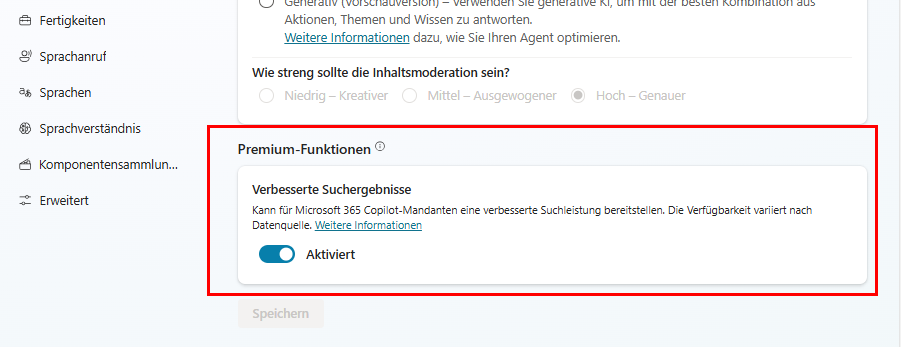
- If the maker of the Copilot Studio agent has an M365 Copilot license, you can turn on the “Enhanced Search” feature. This ensures that SharePoint not only uses the normal keyword search, but also creates a semantic index. This ensures that the context of the information is better taken into account.
- Upload relevant documents directly to your Copilot Studio agent. The documents are saved in Dataverse. The Dataverse search is also superior to the normal SharePoint search. In addition, the information space is restricted to the documents relevant to the bot. One disadvantage here is that user authorizations no longer play a role. All users of the bot can access the contents of the documents.
- Restructure the data in SharePoint that is relevant for the bot. Although this is a lot of work, it offers a double benefit. The Copilot Studio Agent gives better answers and users get better search results even without the bot. There are a few things that will help you with restructuring.
- Bundle all relevant information on a topic in one place - a document or a page.
- Use captions to describe the content of images or convert images into text-based formats such as PowerPoint if it makes sense.
- Structure the information clearly with headings.
- Delete outdated documents or use versioning in SharePoint.
Structure your agent with topics and use the option to search only certain knowledge sources.
Conclusion
If your Copilot Studio agent does not provide good answers for data in SharePoint, it is probably due to the data structure and the search in SharePoint. Copilot Studio can help you to summarize information. However, it cannot replace or improve the SharePoint search. Here are some ways to structure your agent and your data so that Copilot Studio provides better answers. I hope this article has given you some useful information.
Comments
viagra generic online pharmacy
2026-05-14
Right here is the perfect blog for anybody who really wants to understand this topic. You realize a whole lot its almost tough to argue with you (not that I personally would want to…HaHa). You certainly put a new spin on a subject that has been written about for many years. Great stuff, just wonderful!
SEO Sklep
2026-07-30
Fantastic Info! But Im having some trouble trying to load your blog.
I have read it numerous times before and in no way gotten a
thing like this, but now when I try to load a thing it just takes a bit while (5-10 minutes ) after which just stops.
I hope i don???¨o?¨¨t have spyware or a thing. Does anyone
know what the difficulty might be?
色情网站优惠
2026-08-24
最佳xxx网站 为成熟观众提供优质内容。探索 安全中心 以确保质量和隐私。
KetoVera
2026-10-19
Good points here. Looking after your wellbeing is so important, and posts like this are a great reminder. Bookmarked for later.
Write a comment
Your email address will not be published. Required fields are marked with an *.